














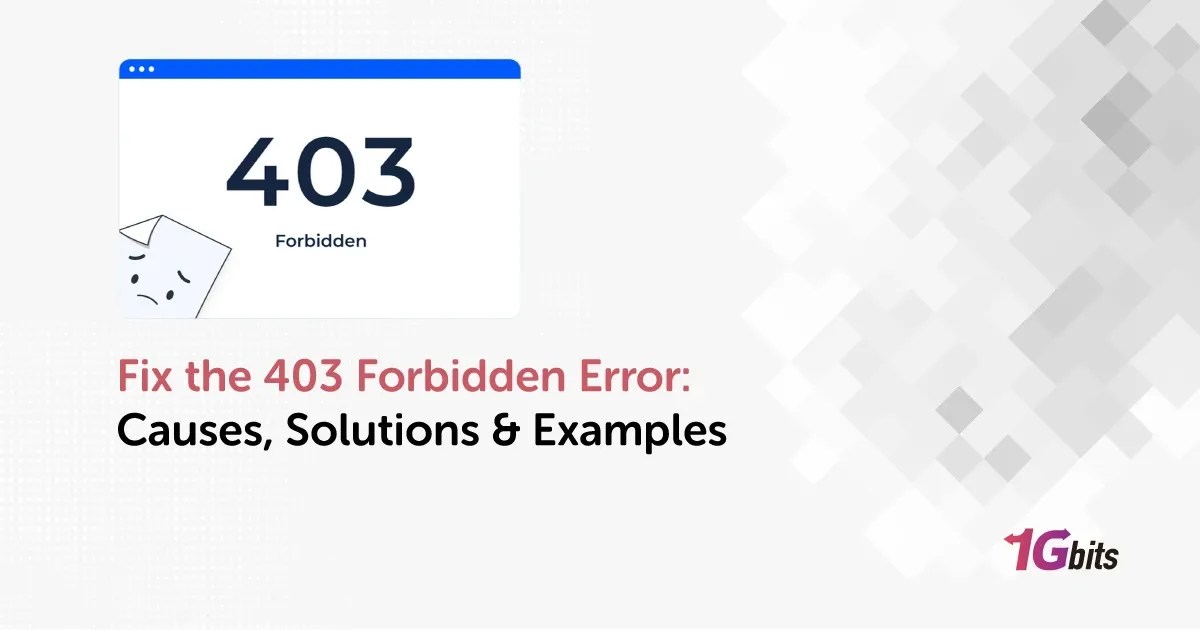




Running into a 403 Forbidden error can feel like hitting a brick wall online. This specific HTTP status code signals that your request to access a resource was understood by the server, but for some reason, permission was denied. It essentially means "You're not allowed here," and it's a common stumbling block for both website visitors and site owners alike. Don't worry, though; most instances of what is 403 can be tracked down and dealt with.
This guide aims to cut through the confusion, offering clear, actionable steps to diagnose and fix the 403 Forbidden error. We'll explore the primary reasons you might encounter this persistent "access denied" message and walk you through troubleshooting strategies, from the simplest browser-based checks to more involved server-side adjustments. Our goal is to empower you to quickly restore your access or your website's functionality in 2026.
What Does a 403 Forbidden Error Really Mean?
A 403 Forbidden error directly means the server understood your request but explicitly denied access to the resource. Unlike a 401 Unauthorized error, which suggests you need proper authentication (like a username and password), a 403 signifies that even with valid credentials, you lack the necessary permissions. It is a server telling you, "I see you, but you can't come in."
Imagine trying to enter a private club; the bouncer sees you, but your name isn't on the list, or you lack the proper membership. The server behaves similarly, preventing access to files, directories, or specific pages. Understanding this core difference is vital for effective troubleshooting of what is 403.
| Aspect | Description |
|---|---|
| Status Code | 403 Forbidden |
| Meaning | Server understands request, but denies access. |
| Common Causes | Incorrect file permissions, .htaccess issues, IP blocks. |
| User Impact | Cannot view requested webpage or resource. |
| Key Difference | Not an authentication issue; it's a permission issue. |
Typically, the browser displays a message like "403 Forbidden," "HTTP 403," or "Access Denied." This isn't usually a server malfunction, but rather a deliberate block put in place for security or configuration reasons. Sometimes it's a simple oversight, like incorrect file permissions, which means the server doesn't have permission to serve the file to you. Other times, it's a more complex issue with server configuration files like .htaccess, which dictate access rules for directories and files.
Another common culprit behind what is 403 is a misconfigured index file. If a web server is set to display a default index file (like index.html or index.php) but can't find one in the directory you're trying to access, it might default to showing a 403 error instead of a directory listing. This is often a security measure to prevent unauthorized browsing of your site's file structure. Additionally, some security plugins or firewall rules can inadvertently block legitimate users or IP addresses, leading to a 403 message. These tools, while essential for protection, can sometimes be overly aggressive.
The server log files are your best friends when trying to pinpoint the exact reason for what is 403. These logs provide detailed records of server activity, including why a specific request was denied. Checking these logs, usually accessible through your hosting control panel, can offer immediate clues, showing which file or directory triggered the permission denial. This diagnostic step often saves a lot of guesswork and directly points to the problematic configuration. Without this information, troubleshooting can become a frustrating guessing game, so always start by reviewing server logs if possible.
Lastly, ensure your browser isn't the one causing trouble. Outdated cache, cookies, or even ad blockers can sometimes interfere with how your browser interacts with a website, mistakenly triggering a 403 error. While less common for persistent 403s, these client-side issues are quick to check and rule out, making them an excellent first step in your troubleshooting journey. It's always a good practice to start with the easiest potential fixes before diving into more complex server configurations.
| Problem Area | Root Cause | Quick Check |
|---|---|---|
| File Permissions | Incorrect read/write/execute settings. | Check cPanel File Manager. |
| .htaccess File | Syntax errors, incorrect directives. | Temporarily rename .htaccess. |
| Directory Indexing | No index file found in directory. | Ensure index.php/html exists. |
| IP Address Block | Firewall or security rules blocking your IP. | Try accessing from a different network/device. |
| Browser Cache | Stale cached data interfering with access. | Clear browser cache and cookies. |
Common Causes of a 403 Forbidden Error
Understanding the common culprits is half the battle when you're facing a 403 Forbidden error. Most often, this issue stems from incorrect file or directory permissions on the server. Every file and folder on your web server has specific permissions that dictate who can read, write, or execute it. If these are set too restrictively, the server won't be able to display the content, resulting in what is 403 for visitors.
Another frequent cause is a misconfigured .htaccess file. This powerful configuration file controls many aspects of your website's behavior, including redirects, caching, and access rules. Even a small typo or an incorrect directive within the .htaccess file can inadvertently trigger a 403 Forbidden error, denying access to entire sections of your site. It's like having a broken lock on a door – even if you have the key, it won't open correctly. Security plugins and server firewalls can also impose rules that block certain IP addresses or requests, leading to legitimate users being denied access.
Sometimes, the absence of an index file (like index.php or index.html) in a directory that's configured to prevent directory browsing can cause a 403. This is often a security feature to prevent unauthorized users from viewing a list of all files in a folder. If the server expects an index file but doesn't find one, and directory browsing is disabled, it will throw what is 403. This is why always having a default index page for every public directory is a best practice for smooth site operation and security.
| Root Cause | Typical Fix | Impact |
|---|---|---|
| Incorrect File/Folder Permissions | Set directories to 755, files to 644. | Resolves server access issues. |
| Corrupt .htaccess File | Rename or regenerate .htaccess. | Corrects server access rules. |
| Missing Index File | Upload index.html/php. | Prevents directory listing 403s. |
| IP Blacklist/Firewall | Check firewall logs, whitelist IP. | Restores access for blocked users. |
| CMS Plugin Conflict | Deactivate plugins one by one. | Identifies problematic extensions. |
Let's dive into some common scenarios and how to address them in 2026, ensuring you know how to handle what is 403.
How to Fix the 403 Forbidden Error
Resolving a 403 Forbidden error often involves a systematic approach, starting with the simplest solutions. First, try clearing your browser's cache and cookies. Stored data can sometimes become corrupted or outdated, causing your browser to send incorrect requests or misinterpret server responses. This quick fix can resolve many transient issues, giving you a fresh start with the website. It's a low-risk, high-reward first step that might just do the trick for what is 403.
Next, inspect your file and directory permissions. Access your hosting control panel, typically cPanel, and navigate to the File Manager. For directories, set permissions to 755 (read, write, execute for owner; read and execute for group and others). For individual files, use 644 (read and write for owner; read only for group and others). Incorrect permissions are a leading cause of what is 403, as the web server lacks the necessary authorization to serve content. Carefully adjust these settings to ensure proper access.
If permissions aren't the issue, turn your attention to the .htaccess file. This file, located in your website's root directory, can easily cause a 403 Forbidden error if it contains syntax errors or conflicting directives. The easiest way to check if this file is the culprit is to temporarily rename it (e.g., to .htaccess_old). If renaming it resolves the 403 error, then the file was indeed the problem. You can then try to regenerate a new .htaccess file or meticulously review the old one for errors. Always make a backup before making changes.
Consider any recently installed plugins or themes if you're using a Content Management System (CMS) like WordPress. A newly added plugin might be imposing overly strict security rules, leading to what is 403. Deactivate plugins one by one to identify the problematic one. If a plugin is the cause, look for alternative solutions or contact the plugin developer for support. This diagnostic approach helps isolate conflicts and restore functionality. Also, double-check if an index.php or index.html file exists in the directory you are trying to access, as its absence can sometimes trigger a 403 if directory browsing is disabled.
What Role Do File Permissions Play in a 403 Error?
File permissions are fundamental to how a web server operates and are often the direct cause of a 403 Forbidden error. These permissions dictate who can read, write, or execute files and directories on your server. When permissions are set incorrectly, the server, acting as the user trying to access the files, might be denied the ability to simply read and serve them to a visitor. This explicit denial results in what is 403, indicating that while the file exists, you're not authorized to view it.
The standard, secure permissions for directories on a web server are 755. This means the owner of the directory has full read, write, and execute permissions (7), while the group and all other users have only read and execute permissions (55). For files, the typical secure permission is 644. Here, the owner has read and write access (6), and the group and others have read-only access (44). Deviations from these standards, especially overly restrictive settings like 600 for files or 700 for directories, can easily trigger a 403 Forbidden message because the web server itself is prevented from reading the content.
Understanding these permission sets and knowing how to adjust them via an FTP client or your hosting control panel's File Manager is a crucial skill for any website owner. Correcting these numeric values ensures that the server can perform its basic function of delivering web content, thereby resolving what is 403. Always remember to apply these changes carefully, starting with the affected files or directories, and then testing access immediately after to confirm the fix without compromising security.
Troubleshooting 403 Forbidden with .htaccess Files
The .htaccess file is a powerful server configuration file that can significantly influence how your website behaves. Found in your site's root directory, it can control everything from URL rewriting and redirects to security settings and access restrictions. Due to its broad capabilities, a single error within the .htaccess file can inadvertently trigger a 403 Forbidden error, making it a frequent suspect when diagnosing what is 403.
Common .htaccess issues include incorrect syntax, such as a missing `Order Allow,Deny` or `Deny from all` directive that was intended for a specific path but was accidentally applied globally. Sometimes, a poorly written `RewriteRule` can create an infinite loop or point to a non-existent resource, leading to access denial. Furthermore, some website builders or plugins might automatically modify this file, introducing conflicts that result in a 403. It's often one of the first server-side files to check after ruling out basic client-side issues.
To troubleshoot, the recommended first step is to temporarily rename the .htaccess file (e.g., to `_htaccess_backup`) and then try accessing the website. If the 403 error disappears, you've confirmed the .htaccess file was the cause. You can then try creating a fresh, default .htaccess file, or meticulously review your backed-up version line by line to identify and correct any problematic directives. Remember that many CMS platforms, like WordPress, have their own default .htaccess content, so always ensure you're using the correct structure if you're rebuilding it.
FAQ Section: Frequently Asked Questions About the 403 Forbidden Error
Why am I suddenly getting a 403 Forbidden error on my website?
A sudden 403 Forbidden error often points to recent changes, like incorrect file permissions, a misconfigured .htaccess file, or a security plugin update. It could also be a temporary IP block from your hosting provider's firewall. Reviewing recent modifications and server logs can quickly pinpoint the exact cause for what is 403.
What is the difference between a 401 Unauthorized and a 403 Forbidden error?
A 401 Unauthorized error means you need to authenticate (log in) to access the resource. A 403 Forbidden error means the server understood your request but explicitly denied access, even if you are authenticated, due to insufficient permissions or server-side rules. It's about access rights versus credentials for what is 403.
Can clearing my browser cache fix a 403 error?
Yes, sometimes clearing your browser's cache and cookies can resolve a 403 Forbidden error. Stored data can become corrupted or outdated, causing your browser to send incorrect requests or misinterpret server responses. It's a simple first step worth trying before investigating server-side issues for what is 403.
How do I check my file permissions to fix a 403 error?
You can check file permissions using an FTP client or your hosting control panel's File Manager. Navigate to your website's root directory. Ensure directories are set to 755 and files to 644. Incorrect permissions are a primary cause of what is 403, preventing the server from serving content.
What if renaming the .htaccess file doesn't fix the 403 error?
If renaming the .htaccess file doesn't resolve the 403 Forbidden error, the issue likely lies elsewhere. Check your file and directory permissions thoroughly, look for missing index files (like index.php), or investigate potential IP blocks from your hosting provider's firewall. A server log review is crucial for identifying the underlying cause of what is 403.
Could a WordPress plugin cause a 403 Forbidden error?
Absolutely. Some WordPress security plugins can inadvertently block legitimate requests, leading to a 403 Forbidden error. If you recently installed or updated a plugin, try deactivating plugins one by one to identify the culprit. This helps narrow down the source of what is 403 in your WordPress setup.