Keeping your Steam client updated is crucial for an optimized gaming experience, ensuring you have access to the latest features, security enhancements, and game compatibility. Without regular updates, you might encounter performance issues, connection problems, or even miss out on new game releases and improvements. This comprehensive guide provides simple, step-by-step instructions on how to update your Steam client efficiently. Whether you are a seasoned PC gamer or new to the platform, understanding the update process will save you time and frustration, ensuring your gaming sessions are smooth and enjoyable. We will cover automatic updates, manual checks, troubleshooting common issues, and why staying current matters for performance and social gaming. Keeping Steam current means better framerates, quicker load times, and seamless multiplayer experiences. This is vital for the 87 percent of US gamers who play regularly, often spending 10 plus hours weekly, looking for relaxation, skill-building, and social connections in their digital worlds.
How do I force a Steam client update if it's not happening automatically?
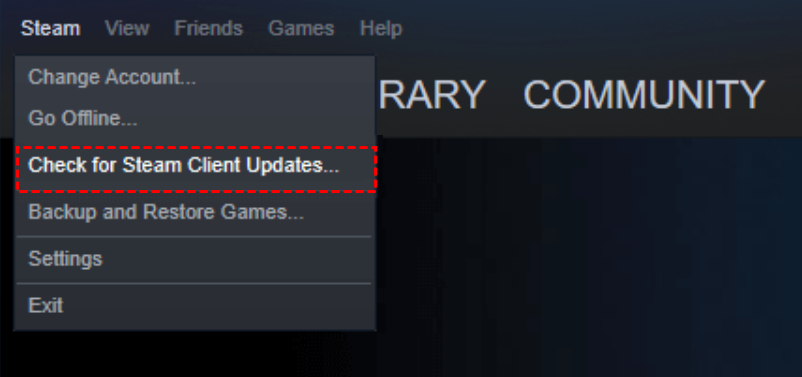
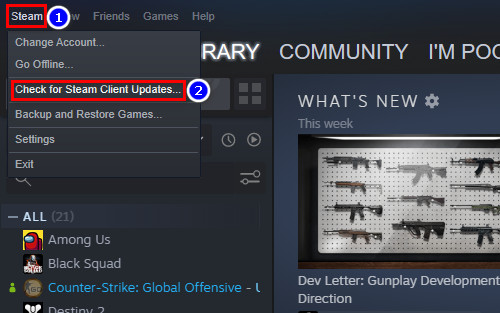
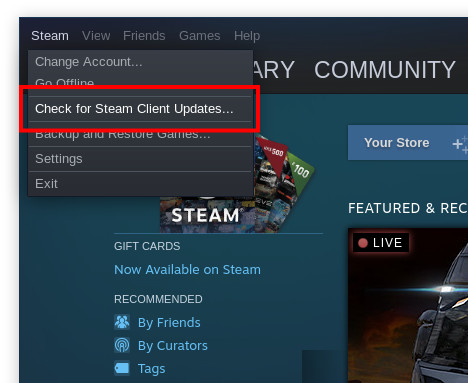
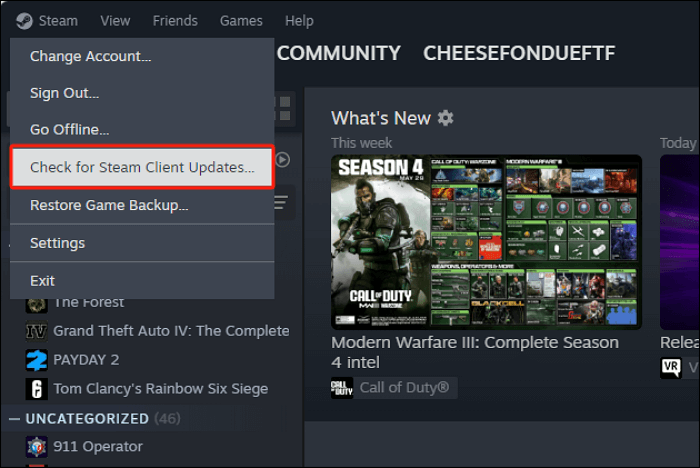
If your Steam client isn't updating on its own, you can manually trigger a check. Simply launch the Steam client, click on "Steam" in the top-left corner of the window, and then select "Check for Steam Client Updates...". Steam will immediately scan for the latest version and download any available updates. A quick restart of the client may be required to finalize the installation and apply the changes, ensuring you're running the most current build for optimal performance and security.
Why is my Steam client update stuck at a certain percentage?
A stuck Steam client update can be frustrating but is often resolvable. Common causes include internet connectivity issues, corrupted download cache, or interference from antivirus/firewall software. To troubleshoot, first try restarting Steam and your computer. If the issue persists, clear your Steam download cache via Settings > Downloads. You might also try changing your download region or temporarily disabling your firewall to identify the problem source, helping the update complete successfully.
What are the latest features I might miss by not updating my Steam client regularly?
By not updating your Steam client, you risk missing out on significant improvements. Recent updates often include enhanced user interface elements, new Steam Deck integration features, performance optimizations for smoother gameplay, and crucial security patches to protect your account. You could also miss out on expanded controller support, new Big Picture Mode functionalities, and improved social features that enhance community interaction, making your overall gaming experience less robust and less enjoyable compared to an updated client.
Can an outdated Steam client cause game performance issues or crashes?
Absolutely, an outdated Steam client can definitely lead to game performance issues, instability, and even crashes. Old client versions might have unpatched bugs that interfere with game launches or in-game functionality. Furthermore, they may lack the latest performance optimizations designed to work with newer operating systems, hardware, or game updates, resulting in lower frame rates, longer loading times, and unexpected game exits. Keeping Steam current ensures better compatibility and a more stable gaming environment for all your titles.
Is there a specific best time to update the Steam client to avoid interruptions?
While Steam updates often happen automatically in the background, if you prefer to manage it, the best time to manually update your Steam client is during off-peak hours when you're not planning an intense gaming session. Weekday mornings or late evenings are typically ideal, as server loads might be lower and you won't be interrupting critical multiplayer matches or story-driven immersion. Since most updates are quick, finding a small 5-10 minute window before you start gaming for the day is usually sufficient.
How do Steam client updates impact my Steam Wallet and purchase security?
Steam client updates significantly enhance the security of your Steam Wallet and purchase transactions. Valve continuously implements new security protocols and patches vulnerabilities to protect your account from phishing attempts, unauthorized access, and fraudulent activities. Running an outdated client leaves you exposed to these risks, potentially compromising your payment information and game library. Regular updates ensure you benefit from the strongest available defenses, making your online transactions and stored funds much safer.
What are the system requirements for the latest Steam client updates?
Generally, the system requirements for the latest Steam client updates remain quite modest and haven't drastically changed, meaning most modern PCs running Windows 7 or newer, macOS 10.11 or newer, or various Linux distributions should have no issues. The client itself is lightweight. However, ensuring your operating system drivers, especially graphics drivers, are also up-to-date is crucial for overall system compatibility and optimal performance, especially when new Steam features leverage modern hardware capabilities.
Ever sat down for a quick gaming session after a long day, only to be met with a pesky "Steam needs to update" message or worse, a game that simply refuses to launch? For many US gamers, balancing work, family, and life means gaming time is precious. The last thing you need is a buggy client or outdated features slowing you down. We're talking about the average gamer, around 36 years old, part of the 60% who game regularly. They value relaxation, fun, and staying current without the hype. A smooth, updated Steam client isn't just a nicety; it's a necessity for enjoying those valuable hours, whether you are unwinding with a cozy indie title, climbing ranks in a competitive shooter, or exploring new worlds with friends. Keeping Steam up-to-date ensures you benefit from the latest performance optimizations, security patches, and new features, directly impacting your fun and potentially even your wallet.
As of this month, 87% of US gamers play regularly, often clocking in over 10 hours a week, with social gaming and cross-play becoming increasingly dominant. An optimized Steam client means smoother gameplay for these social interactions, less lag, and better overall stability, letting you focus on the fun, not the frustration. This guide is built to cut through the noise, providing clear, actionable steps on how to update your Steam client. We will address common pain points, from setup issues to performance problems, ensuring your gateway to thousands of games is always running at its best. Let's dive into keeping your Steam experience as seamless as possible.
How Does Steam Client Update Automatically?
Most of the time, Steam handles its updates seamlessly in the background. When you launch the Steam client, it typically performs a quick check for any available updates. If an update is detected, it usually begins downloading and installing it automatically before the main interface loads. This design minimizes disruption, allowing you to get into your games faster without manual intervention. Valve, the developer behind Steam, pushes these updates frequently to introduce new features, improve security, and fix bugs, ensuring a robust platform experience. Think of it like your phone or computer automatically installing system updates; it's designed to keep things running optimally without you having to constantly monitor it. This automatic process is often why many gamers rarely think about updating Steam manually, because it just happens.
What If My Steam Client Doesn't Update Automatically?
While Steam is great at automatic updates, sometimes things don't go as planned. If you suspect your client isn't updating or you're experiencing issues that an update might fix, there are a few straightforward ways to force a check. The most common reason for a failed automatic update is often a temporary internet connectivity issue or a bug with the client itself. It's a common pain point for busy gamers who just want their system to work. Before troubleshooting deeper, a simple restart of the client often resolves these minor hiccups, prompting Steam to re-check for updates upon relaunch. If that doesn't work, manual checks are your next best friend.
How Can I Manually Check for Steam Client Updates?
Manually checking for updates is surprisingly simple and often overlooked. Here's how you do it:
- Launch your Steam client.
- Once the client is open, look for the "Steam" menu option in the very top-left corner of the window.
- Click on "Steam" to open the dropdown menu.
- Select "Check for Steam Client Updates..." from the list.
- Steam will then immediately check for any available updates. If an update is found, it will begin downloading and installing it. You might need to restart the client afterward for the changes to take full effect. This quick manual check can be a lifesaver when you need to ensure you're on the absolute latest version.
Why Is Keeping My Steam Client Updated So Important for Gamers?
Staying current with your Steam client isn't just about getting new features; it's about optimizing your entire gaming life. An updated client means better performance, fewer bugs, and enhanced security. Valve consistently rolls out patches that improve client stability, reduce crashes, and optimize how games run. This can translate to higher frame rates, quicker load times, and a smoother overall experience, which is crucial for those intense multiplayer matches or exploring vast open worlds. Furthermore, security updates protect your account from new vulnerabilities, safeguarding your digital purchases and personal information. For gamers who juggle life, work, and family, this means less time troubleshooting and more time actually enjoying their games – a key value for the average US gamer. It also ensures compatibility with the latest games and features like Steam Deck integration or new Big Picture Mode updates.
What Are the Benefits of Running the Latest Steam Client Version?
The benefits of running the latest Steam client are extensive and directly impact your gaming enjoyment and system health. First, you gain access to all the newest features and user interface improvements that Valve introduces, making the client more intuitive and powerful. Second, performance optimizations are a continuous focus, ensuring your games run as smoothly as possible with minimal resource drain. Third, crucial security fixes are integrated, protecting your account from potential threats and exploits, which is increasingly important in our interconnected digital world. Lastly, bug fixes address known issues that might cause crashes, glitches, or connectivity problems, providing a more stable and reliable platform. For gamers, this means a hassle-free experience, allowing them to focus on skill-building and social play rather than technical frustrations. It also future-proofs your client for emerging trends like new VR experiments or cloud gaming integrations.
How Do I Troubleshoot If My Steam Client Won't Update?
Encountering an update error can be frustrating, especially when you are pressed for time. Here are some effective troubleshooting steps for when your Steam client refuses to update:
- Check Internet Connection: Ensure your internet connection is stable and working. A weak or intermittent connection is a common culprit.
- Restart Steam: Close Steam completely (even from the system tray) and relaunch it. This often kickstarts the update process.
- Restart Your Computer: A full system restart can clear temporary glitches and free up resources that might be blocking the update.
- Run Steam as Administrator: Right-click on the Steam shortcut and select "Run as administrator." This can resolve permission-related issues.
- Clear Download Cache: In Steam, go to "Steam" > "Settings" > "Downloads" > "Clear Download Cache." This can fix corrupted update files.
- Change Download Region: Sometimes, a specific download server might be having issues. You can change your download region in "Steam" > "Settings" > "Downloads."
- Verify Network Configuration: Ensure your firewall or antivirus software isn't blocking Steam. Temporarily disabling them (with caution) can help diagnose the issue.
- Reinstall Steam (Last Resort): If all else fails, you might need to reinstall Steam. IMPORTANT: Back up your "steamapps" folder first to preserve your game installations, otherwise you'll have to re-download all your games. You can usually find this folder within your Steam installation directory (e.g., C:\Program Files (x86)\Steam).
These steps cover most common update problems, getting you back to gaming faster.
Is There a Way to Check My Current Steam Client Version?
Yes, knowing your current Steam client version can be helpful for troubleshooting or simply confirming you are up-to-date. To find this information:
- Open your Steam client.
- In the top-left corner, click on "Help."
- From the dropdown menu, select "About Steam."
- A small window will appear displaying detailed information about your Steam client, including the "Steam Client Version" number and the "Steam API Version." This information is useful for support forums or when comparing against known latest versions online.
Can I Prevent Steam from Updating Automatically?
Generally, no, you cannot fully prevent Steam from updating itself. Valve designs Steam to always run the latest stable version to ensure platform integrity, security, and game compatibility. Updates are mandatory for client functionality and accessing the Steam network. Attempting to block updates can lead to various issues, including being unable to launch games, connect to multiplayer, or access the store. The client is built on a "live service" model, meaning it needs to be current to function properly. While you can influence when game updates happen, the core client itself is designed for mandatory updates. This ensures a consistent, secure experience for the vast majority of users, especially critical for competitive social gaming where everyone needs to be on the same page.
Does Updating Steam Affect My Installed Games?
No, updating your Steam client typically does not directly affect your installed games or their saved data. Client updates primarily focus on the Steam application itself: its interface, backend services, security features, and overall stability. Your game files and save data are separate. However, an updated client ensures better compatibility and performance for those games. Occasionally, a game itself might require an update to be playable with the latest client features, but this is managed by Steam's game update system, not the client update directly. You can think of it as updating your web browser; it doesn't change the websites you visit, but it might make them load faster or more securely. So, rest assured, your progress in that epic RPG or your carefully curated Animal Crossing island is safe.
Keeping your Steam client updated is a small but mighty act of digital self-care that pays huge dividends in gaming satisfaction. For busy gamers balancing life's demands, every second counts, and a smoothly running Steam client ensures those precious gaming moments are spent having fun, not fighting software. From automatic background updates to quick manual checks and straightforward troubleshooting, staying current is easier than you think. It empowers you to enjoy the latest features, benefit from performance boosts, and game securely with your friends. Remember, an optimized client means a more enjoyable, stable, and secure gaming experience. What's your biggest gaming challenge when it comes to keeping your setup running perfectly? Comment below and let's tackle it together!
FAQ Section
Q: How often does Steam update?
A: Steam typically updates several times a month, sometimes weekly, to introduce new features, performance improvements, and critical security patches. Major updates might be less frequent, but small bug fixes and enhancements are common.
Q: My Steam update is stuck. What should I do?
A: First, try restarting Steam and your computer. If it's still stuck, clear your download cache via Steam Settings > Downloads > Clear Download Cache. Checking your internet connection and temporarily disabling your firewall might also help.
Q: Do Steam client updates require a lot of data?
A: Most Steam client updates are relatively small, often just a few megabytes, focusing on specific fixes or minor feature additions. Major updates might be larger but are still generally manageable for most internet connections.
Q: Will updating Steam improve my game's FPS?
A: While a direct FPS boost isn't guaranteed with every client update, Steam updates often include performance optimizations that can lead to smoother gameplay, faster load times, and fewer in-game stutters, contributing to a better overall experience.
Q: Is it safe to reinstall Steam to fix update issues?
A: Yes, reinstalling Steam can resolve persistent update issues. However, always back up your "steamapps" folder (located in your Steam installation directory) before uninstalling to avoid re-downloading all your games. Reinstallation generally takes minutes.
Q: Where can I find the official Steam update release notes?
A: You can usually find official update release notes on the Steam blog or in the Steam client itself by going to "Help" and looking for "View Steam News." These notes detail all changes and fixes in each update.
Automatic Steam client updates ensure optimal performance, security, and feature access. Manual update checks are simple through the Steam menu. Troubleshooting involves restarting your client, verifying internet, or reinstalling. An updated client ensures compatibility with the latest games and enhances the overall gaming experience, making it smoother and more secure for all users.
35



Steam S June Client Update Brings Proton Default On Linux Steam Client June 2026 . Steam For Windows Moves To 64 Bit 32 Bit Updates End On January 1 STEAM CLIENT 32BIT . How To Update Steam Games Manually 2025 YouTube . How To Update Steam Client YouTube . Steam Deck Client Update Key Changes In March 2026 LevelUpTalk Steam Deck Update 03 10 2026 108aa17b A04c 403f 8666


Steam Updating User ETDKHL Turn On Auto Update On Steam . Unable To Run Steam Games In Windows 10 Complete Guide How To Play . How To Update Steam Application To Latest Version 2026 Tutorial YouTube . Valve S Latest Steam Client Release Brings Faster Download Of Updates Sc205.webp. Steam For Windows Moves To 64 Bit 32 Bit Updates End On January 1 Valve Client 64 Bit 850x370

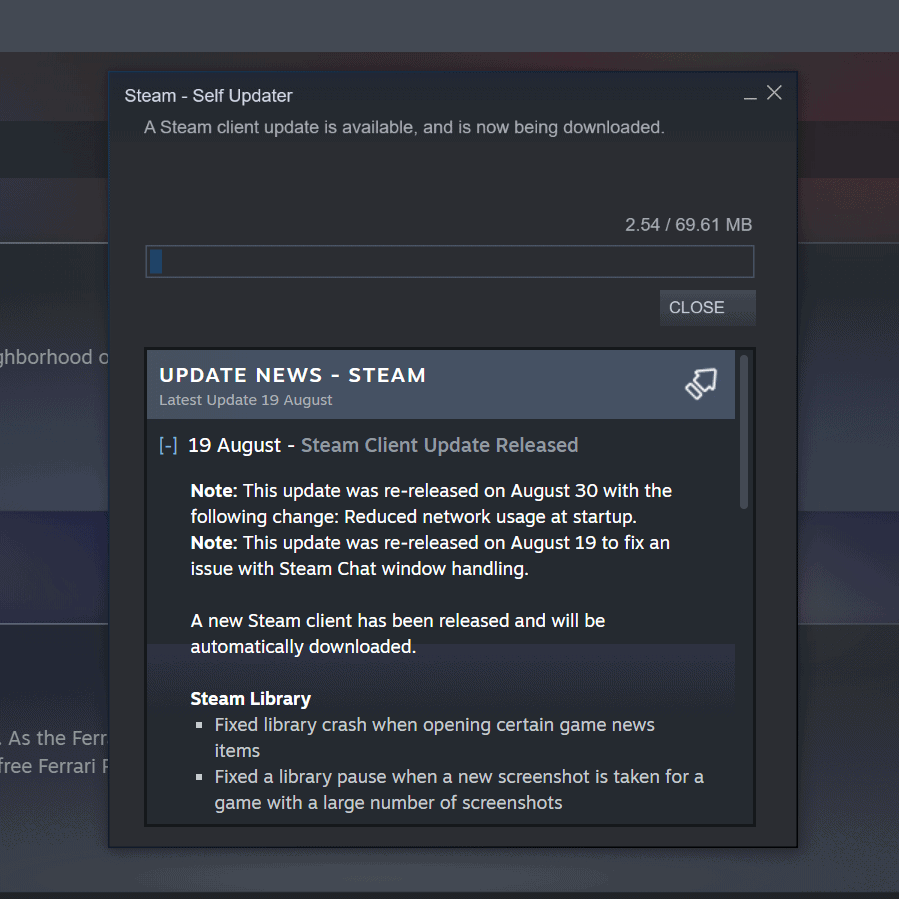

Steam Update Stuck How To Fix Download Faster Steam Update Stuck . Steam Controller Support Arrives For All Steam Deck Owners In The Steam Controller With Steam Deck Edit . 11 Solutions Steam And PlayStation Remote Play Is Not Currently Available Restart Steam . Why Steam Updates So Often It Seems Like It S Every Day Tech Overwrite The Steam Client Saying That An Update Is Available And Being Downloaded . Latest Steam Client Update Adds Support For Valve S New Steam Sc5526.webp
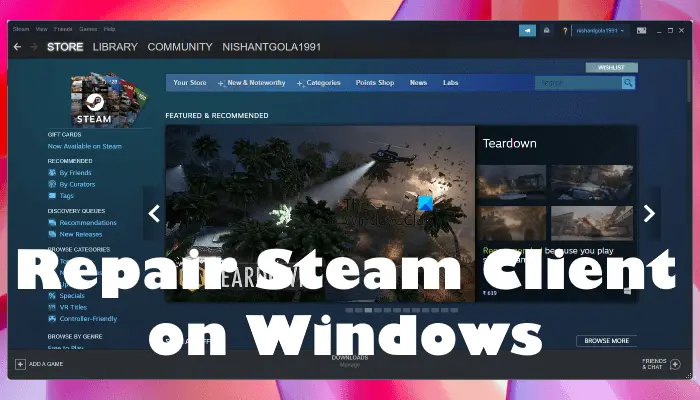


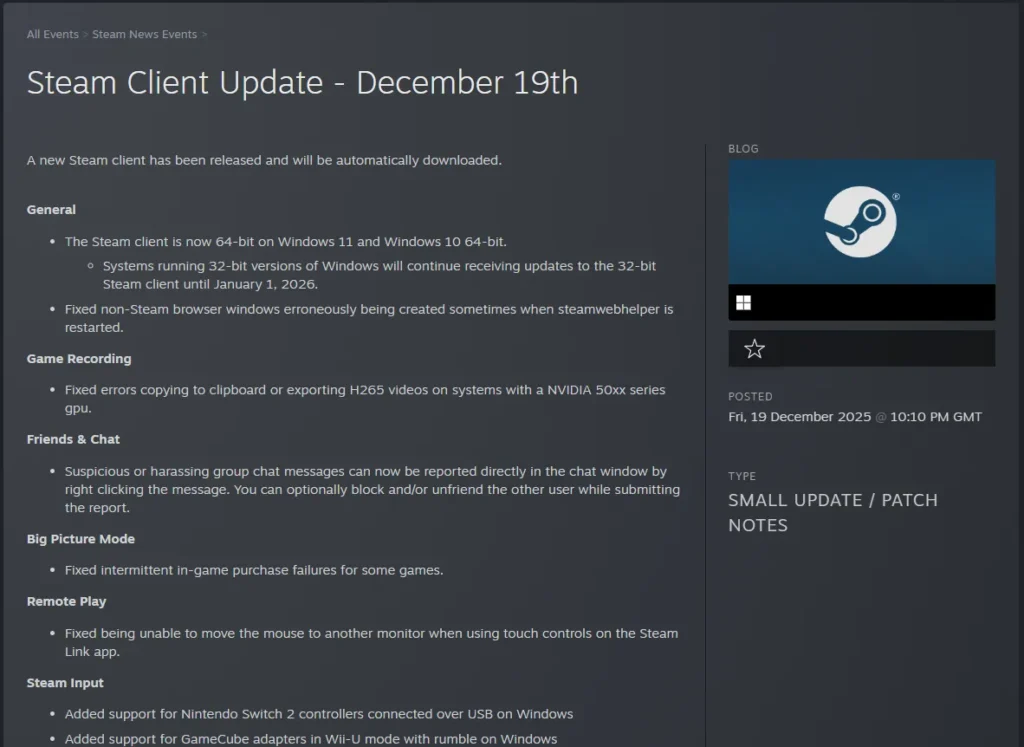
Steam Workshop Downloader Not Working On PC Repair Steam Client On Windows . Steam Releases Client Update Addresing Incorrect VRAM Reading For STEAM BETA CLIENT UPDATE . New Steam Client Update Adds Support For Dimming The Steam Controller S Sc061.webp. Steam Client Now Lets You Manage Downloads On Remote Steam Clients Sc284.webp. Steam Completes Transition To 64 Bit Client On Windows With Major Steam Client Update


New Steam Client Stable Update Fixes UI Issues On Linux For Intel AMD New Steam Client Stable Update Fixes Ui Issues On Linux For V0 . Com Steam At Helen Cummings Blog . 11 Solutions Steam And PlayStation Remote Play Is Not Currently Available Check For Steam Client Updates . Steam Will Soon Show Hardware Specs In Game Reviews WareData Tech Steam Client Beta Updates February 12th 1024x464 .webp. Steam App Is Now 64 Bit Only On Systems That Support It 32 Bit Support



Why Does Steam Update So Much 4 Crucial Reasons 2024 Steam Manual Client Update . 10 Ways To Fix Steam Store Not Loading On Windows 11 360 Reader 10 Ways To Fix Steam Store Not Loading On Windows 11 1125x633 . Valve Releases Major Steam Desktop Client Update TechPowerUp . Steam Releases Client Update Addresing Incorrect VRAM Reading For STEAM . SteamOS 3 7 24 Released Along With A Stable Steam Client Update With Steam Plain 2025


New Steam Update From Valve Lets You Trace Your Entire Backlog Sddefault . Steam Client On Linux Has Been Updated Here S What S New Steam Client Check For Updates . Jak Opravit Nefunk N P Enos Lok Ln Ch Soubor Ve Slu B Steam Odpov Zeno Check For Steam Client Updates . Steam Releases Client Update Addresing Incorrect VRAM Reading For STEAM 1536x799 . Steam Just Got A Massive Update On PC Bringing A Refreshed UI And New 91908 01 Steam Just Got Massive Update On Pc Bringing Refreshed Ui And New Features Full